'%20stroke='white'%20stroke-width='8'/%3e%3c/svg%3e)
How to Test M3U8 Streams & HLS Playback - Complete Testing Guide
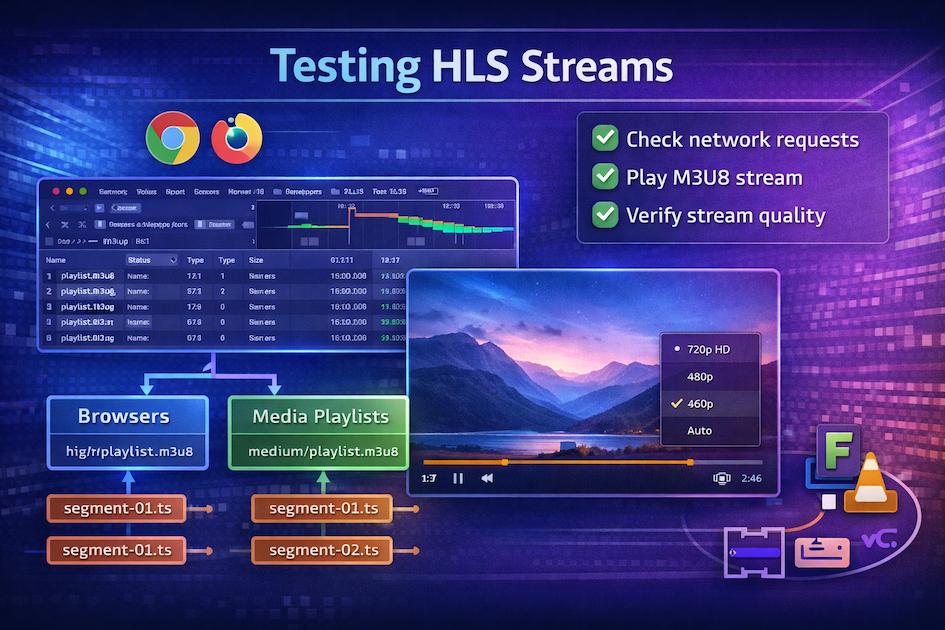
How to Test M3U8 Streams & HLS Playback: Developer's Guide
Testing M3U8 streams is a critical skill for any developer working with video streaming. Whether you're debugging playback issues, validating new streams, or ensuring quality across devices, knowing how to properly test HLS streams can save you hours of frustration.
Before we dive into testing methods, make sure you have access to working test streams. Our collection of free M3U8 test streams provides 20+ verified URLs perfect for practicing the techniques covered in this guide.
Introduction
Why is M3U8 stream testing so crucial? Because streaming problems often don't manifest until users try to watch your content on their specific device, network, and configuration. Proactive testing helps you catch issues early.
Common testing scenarios:
- Verifying a new stream works correctly before going live
- Debugging playback failures reported by users
- Validating adaptive bitrate switching behavior
- Testing cross-browser and cross-device compatibility
- Ensuring streams meet performance requirements
- Checking security and DRM implementations
- Validating multi-language and accessibility features
Browser-Based Testing Methods
Modern browsers provide powerful tools for testing M3U8 streams directly, making them your first line of defense.
Using Online HLS Players
The fastest way to test an M3U8 URL is with an online video player. Our online IPTV player is specifically designed for testing M3U8 streams:
How to test:
- Copy your M3U8 URL
- Navigate to the player page
- Paste the URL into the input field
- Click play and observe playback
What to check:
- Does the video start playing within 3-5 seconds?
- Is the video quality appropriate for your network?
- Does adaptive bitrate switching work smoothly?
- Are there any buffering or stuttering issues?
- Do seeking and controls work correctly?
Benefits of online players:
- No installation required
- Works on any device with a browser
- Immediate feedback
- Useful for sharing test results with team members
Browser Developer Tools Inspection
Browser DevTools reveal what's happening under the hood:
Chrome/Edge DevTools:
- Press F12 to open DevTools
- Go to the Network tab
- Filter for "m3u8" or "ts" to see HLS requests
- Play your video and observe:
- HTTP status codes (should be 200 OK)
- Response times (should be under 200ms)
- Segment sizes (check for consistency)
- Request headers and CORS issues
Firefox Developer Tools:
- Press F12 to open Developer Tools
- Navigate to Network Monitor
- Look for playlist and segment requests
- Check the Timings tab for performance metrics
Safari Web Inspector:
- Enable Developer menu (Preferences → Advanced → Show Develop menu)
- Right-click page → Inspect Element
- Go to Network tab
- Observe HLS requests
Network Tab Monitoring
The Network tab provides crucial debugging information:
Key metrics to monitor:
- Initial playlist load time - Should be under 500ms
- Segment download time - Should complete before playback reaches them
- Waterfall visualization - Shows request timing and dependencies
- Total data transferred - Helps estimate bandwidth usage
- Failed requests - Red entries indicate problems
How to read the waterfall:
playlist.m3u8 ------>        (100ms - Good)
segment0.ts  -------->       (300ms - Good)
segment1.ts   -------->      (280ms - Good)
segment2.ts          ----X   (FAILED - Problem!)
Segments should download sequentially without gaps. Failed requests or long delays indicate network or server issues.
Testing in Safari vs Chrome
Different browsers handle HLS differently:
Safari (macOS/iOS):
- Native HLS support - No JavaScript library needed
- Uses built-in AVPlayer
- Most reliable iOS playback
- Strict HLS compliance enforcement
- Best for testing iOS compatibility
Chrome/Edge (desktop):
- Requires HLS.js or similar library - JavaScript-based playback
- More forgiving with non-compliant streams
- Better error reporting for debugging
- Works on Windows, macOS, Linux
- Good for general web compatibility testing
Firefox:
- Requires HLS.js or similar library
- Performance can vary
- Good for testing additional browser compatibility
Testing strategy:
- Start with Safari - If it works in Safari, it's likely standards-compliant
- Test Chrome with HLS.js - Ensures web player compatibility
- Test Firefox - Validates broad browser support
- Test Edge - Confirms Windows compatibility
Command-Line Testing Tools
For deep technical validation, command-line tools provide unmatched power and precision.
FFmpeg for Stream Validation
FFmpeg is the Swiss Army knife of video testing:
Basic stream information:
bashffmpeg -i https://example.com/stream.m3u8
This command analyzes the stream and displays:
- Format and codec information
- Video resolution and frame rate
- Audio sample rate and channels
- Duration (for VOD)
- Bitrate information
Test playback without GUI:
bashffplay https://example.com/stream.m3u8
FFplay opens a window and plays the stream, useful for quick visual verification.
Convert/transcode to validate integrity:
bashffmpeg -i https://example.com/stream.m3u8 -t 30 -c copy test.mp4
This downloads 30 seconds and copies it to a local file. If this succeeds, the stream structure is valid.
Detailed stream analysis:
bashffprobe -v error -show_format -show_streams https://example.com/stream.m3u8
Provides comprehensive technical details in a structured format.
Check for errors:
bashffmpeg -v error -i https://example.com/stream.m3u8 -f null -
Decodes the entire stream and reports any errors without creating output. Perfect for validation.
cURL for Manifest Inspection
cURL lets you examine playlists at the HTTP level:
Download and view a playlist:
bashcurl https://example.com/playlist.m3u8
Check HTTP headers:
bashcurl -I https://example.com/playlist.m3u8
Important headers to verify:
- Content-Type: Should be or
application/vnd.apple.mpegurlapplication/x-mpegurl - Access-Control-Allow-Origin: Required for CORS (should be or your domain)
* - Cache-Control: Affects playlist reload timing
Follow redirects:
bashcurl -L https://example.com/playlist.m3u8
Many CDNs use redirects. The
-LTest with different User-Agents:
bashcurl -A "Mozilla/5.0 (iPhone; CPU iPhone OS 15_0 like Mac OS X)" https://example.com/playlist.m3u8
Some servers return different streams based on User-Agent.
Download all segments:
bashcurl https://example.com/playlist.m3u8 | grep -v "^#" | xargs -I {} curl -O {}
Downloads all segments referenced in the playlist for offline analysis.
VLC Command-Line Usage
VLC can be used via command line for automated testing:
Play a stream:
bashvlc https://example.com/playlist.m3u8
Stream analysis mode:
bashvlc -vv https://example.com/playlist.m3u8
The
-vvConvert stream to file:
bashvlc https://example.com/playlist.m3u8 --sout=file/ts:output.ts
Useful for capturing live streams or extracting segments.
HTTP Inspection Tools
Additional tools for deep inspection:
wget - Download playlists and segments:
bashwget -r -l 1 -np -nd https://example.com/playlist.m3u8
Downloads the playlist and all referenced segments.
httpie - Human-friendly HTTP client:
bashhttp https://example.com/playlist.m3u8
Provides colorized, formatted output that's easier to read than curl.
mitmproxy - Intercept and inspect traffic:
bashmitmproxy
Acts as a proxy to inspect all HTTP/HTTPS traffic, including HLS requests.
Online Validation Services
Several online tools can validate and analyze your M3U8 streams:
HLS Analyzer Tools
Apple's HLS Tools:
- mediastreamvalidator (macOS only) - Official validation tool
- Checks compliance with HLS specification
- Identifies potential compatibility issues
Third-party validators:
- HLS stream analyzer websites
- Provide reports on stream structure
- Check for common errors and warnings
- Some offer performance metrics
What they check:
- Playlist syntax correctness
- Segment availability and consistency
- Proper tag usage and values
- Codec compatibility
- Recommended vs required attributes
Stream Health Checkers
Online services that continuously monitor stream health:
Features to look for:
- Uptime monitoring - Checks if stream is accessible 24/7
- Playback testing - Verifies actual video playback works
- Multi-location testing - Tests from different geographic locations
- Alert notifications - Emails or SMS when problems detected
- Historical data - Tracks performance over time
Metrics monitored:
- Stream availability (uptime percentage)
- Average load time
- Buffering rate
- Quality switching behavior
- Error rates
Bandwidth Calculators
Tools that help estimate bandwidth requirements:
What they calculate:
- Peak bandwidth per quality level
- Concurrent viewer capacity
- CDN bandwidth costs
- Recommended bitrates for target audience
How to use them:
- Input your video specifications (resolution, frame rate, codec)
- Specify number of quality levels
- Estimate concurrent viewers
- Get bandwidth requirements and cost estimates
Latency Testers
For live streaming, latency is crucial:
What they measure:
- Glass-to-glass latency - Total delay from camera to viewer
- Segment duration impact - Shorter segments = lower latency
- Buffering strategy impact - Affects perceived delay
Typical latency ranges:
- Traditional HLS: 20-30 seconds
- Low-Latency HLS: 2-5 seconds
- Ultra-Low Latency: Under 1 second (requires LL-HLS)
Testing Different Stream Types
Different content requires different testing approaches.
Live Streams vs VOD
Live stream testing:
- Verify playlist updates correctly (should reload every target duration)
- Check segment availability (old segments should be removed)
- Test DVR functionality (if enabled)
- Validate program date-time tags
- Ensure smooth transitions during quality switches
- Monitor latency between source and playback
VOD testing:
- Confirm tag is present
#EXT-X-ENDLIST - Verify all segments are accessible
- Test seeking to various timestamps
- Check thumbnail preview functionality (if using I-frame playlists)
- Ensure consistent playback across entire duration
Adaptive Bitrate Switching
Testing ABR is critical for user experience:
How to test quality switching:
-
Network throttling - Use browser DevTools to simulate different connection speeds:
- DevTools → Network tab → Throttling dropdown
- Try "Slow 3G", "Fast 3G", "Slow 4G"
-
Observe quality changes - Watch for:
- Smooth transitions (no playback interruption)
- Appropriate quality for bandwidth
- Quick adaptation to network changes
-
Force quality switches - Some players let you manually select quality
- Switch between qualities during playback
- Verify seamless transitions
-
Monitor network tab - Look for:
- Different playlist URLs being requested
- Segment sizes changing appropriately
- No download failures during switches
Expected behavior:
[1080p segments] → Network slowdown → [720p segments] → [480p segments]
[480p segments] → Network improves → [720p segments] → [1080p segments]
Transitions should happen smoothly without buffering.
Alternative Audio Tracks
If your stream has multiple audio options:
Testing steps:
-
Verify master playlist lists all audio tracks:
plaintext#EXT-X-MEDIA:TYPE=AUDIO,NAME="English",LANGUAGE="en",URI="eng.m3u8" #EXT-X-MEDIA:TYPE=AUDIO,NAME="Español",LANGUAGE="es",URI="spa.m3u8" -
Test audio track switching during playback
-
Verify audio stays synchronized with video
-
Check that default audio track loads correctly
-
Test autoselect behavior based on browser language
Subtitle Stream Testing
For closed captions and subtitles:
Validation checklist:
- Subtitle tracks listed in master playlist
- WebVTT or other subtitle format is valid
- Timing is synchronized with video
- Text renders correctly (no character encoding issues)
- Multiple language subtitles work
- Subtitles can be toggled on/off during playback
Example subtitle declaration:
plaintext#EXT-X-MEDIA:TYPE=SUBTITLES,GROUP-ID="subs",NAME="English",LANGUAGE="en",URI="eng/subs.m3u8"
Common Testing Issues
Even with perfect streams, you'll encounter testing challenges.
CORS Errors and Solutions
Cross-Origin Resource Sharing (CORS) errors are extremely common:
Error message:
Access to fetch at 'https://example.com/playlist.m3u8' from origin 'https://yoursite.com'
has been blocked by CORS policy: No 'Access-Control-Allow-Origin' header is present.
Solution (server-side):
Add CORS headers to your server configuration:
Access-Control-Allow-Origin: *
Access-Control-Allow-Methods: GET, HEAD
Access-Control-Allow-Headers: Range
Testing CORS:
bashcurl -H "Origin: https://yoursite.com" -I https://example.com/playlist.m3u8
Check for
Access-Control-Allow-OriginWorkarounds for testing:
- Use a CORS proxy (for testing only!)
- Disable CORS in browser (dangerous, testing only!)
- Test from the same origin
- Use browser extensions that modify headers
Protocol Mismatches
Mixing HTTP and HTTPS causes problems:
Common scenarios:
- HTTPS page trying to load HTTP stream (blocked by mixed content policy)
- HTTP page loading HTTPS stream (usually works but not ideal)
Solutions:
- Match protocols (HTTPS page → HTTPS stream)
- Upgrade everything to HTTPS
- Use protocol-relative URLs:
//example.com/stream.m3u8
Testing:
bash# Test both protocols
curl https://example.com/playlist.m3u8
curl http://example.com/playlist.m3u8
Codec Compatibility
Not all devices support all codecs:
Common compatibility issues:
- H.265/HEVC not supported on older devices
- AC-3 audio not supported in some browsers
- VP9 limited support outside Chrome
Testing codec support:
bashffprobe -show_streams https://example.com/playlist.m3u8 | grep codec
Recommended codec combinations:
- Maximum compatibility: H.264 + AAC
- Best compression: H.265 + AAC (check device support)
- Web-focused: VP9 + Opus (modern browsers only)
Network Throttling Impact
Testing under realistic network conditions is essential:
Chrome DevTools throttling:
- Open DevTools (F12)
- Network tab → Throttling dropdown
- Select profile or create custom profile
Custom throttling profiles to test:
- Mobile 3G: 400 Kbps download (rural areas)
- 4G: 4 Mbps download (typical mobile)
- Cable: 10 Mbps download (home broadband)
- Congested Wi-Fi: 2 Mbps with 200ms latency
What to observe:
- Does ABR switch to lower quality appropriately?
- Is there buffering during quality transitions?
- Does playback maintain smoothness?
Best Practices
Follow these guidelines for effective testing:
1. Test early and often - Don't wait until production to discover problems
2. Use real test URLs - Work with actual streams like those from our M3U8 test collection
3. Test across devices - Minimum test matrix:
- iOS Safari (iPhone/iPad)
- Android Chrome
- Desktop Chrome
- Desktop Safari
- Desktop Firefox
4. Automate where possible - Create scripts for repetitive tests:
bash#!/bin/bash
for url in "${urls[@]}"; do
  ffmpeg -v error -i "$url" -f null - && echo "$url: OK" || echo "$url: FAILED"
done
5. Document findings - Keep a testing log:
- What you tested
- Results observed
- Issues discovered
- Fixes applied
6. Network condition simulation - Always test with throttling enabled
7. Performance monitoring - Track:
- Time to first frame
- Buffering rate
- Quality switching frequency
- Error rate
8. Security testing - If using encryption:
- Verify key delivery works
- Test token expiration
- Check for proper HTTPS usage
For deeper troubleshooting when things go wrong, check out our Troubleshooting M3U8 & HLS Errors guide.
Conclusion
Effective M3U8 testing combines multiple tools and approaches. Start with quick browser-based tests, dive deeper with command-line tools when needed, and leverage online validators for comprehensive analysis. Remember to test across devices, network conditions, and use cases.
Practice these techniques with real streams from our free M3U8 test URLs collection. The more you test, the faster you'll identify and resolve issues.
Next up: Learn how to troubleshoot common M3U8 errors when your tests reveal problems.