'%20stroke='white'%20stroke-width='8'/%3e%3c/svg%3e)
M3U8 File Format & Structure Guide - Complete Technical Reference
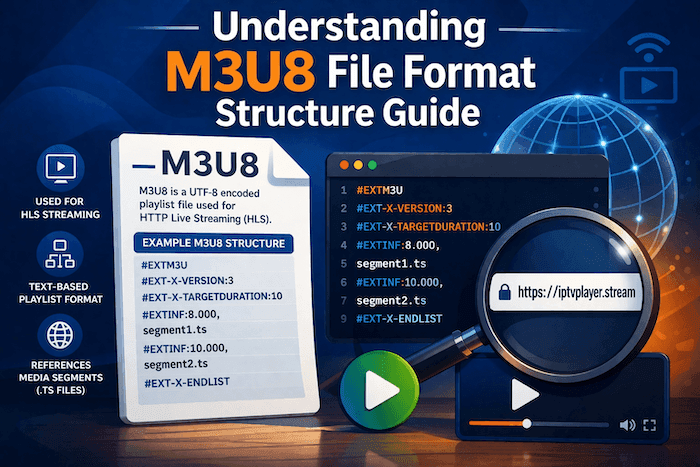
Understanding M3U8 File Format & Structure: Complete Technical Guide
If you're working with video streaming, you've likely encountered M3U8 files. These playlist files are the backbone of HTTP Live Streaming (HLS), powering everything from live broadcasts to on-demand video delivery. Whether you're debugging streaming issues or building your own video player, understanding the M3U8 format is essential.
Before diving deep into the technical details, you might want to explore our collection of free M3U8 test URLs to experiment with real-world examples as you learn.
What is an M3U8 File?
An M3U8 file is a UTF-8 encoded playlist file used in HTTP Live Streaming (HLS). Originally derived from the M3U audio playlist format, M3U8 files serve as manifests that tell video players where to find media segments and how to play them.
The Evolution from M3U to M3U8
The M3U format was initially created for audio playlists by Fraunhofer in the 1990s. When Apple developed HLS in 2009, they extended this format and mandated UTF-8 encoding, hence the "8" in M3U8. This encoding support allows for international characters in stream names and metadata.
Key characteristics:
- Plain text format - Easy to read and debug
- UTF-8 encoding - Supports all Unicode characters
- Directive-based - Uses specific tags to define behavior
- HTTP-based - Streams over standard web protocols
- Adaptive - Supports quality switching based on bandwidth
Common Use Cases
M3U8 files power streaming across multiple scenarios:
- Live streaming - Sports, news, concerts, events
- Video on demand (VOD) - Movies, TV shows, educational content
- Adaptive bitrate streaming - Automatic quality adjustment
- Time-shifted viewing - DVR-like functionality
- Multi-angle viewing - Alternative camera angles
- Multi-language audio - International content delivery
- Closed captions - Accessibility support
M3U8 File Structure Breakdown
Every M3U8 file follows a specific structure. Understanding these components is crucial for working with HLS streams effectively.
Required Header
All M3U8 files must start with the
#EXTM3Uplaintext#EXTM3U
Without this header, players will reject the file. It must be the first line - no exceptions.
Master Playlist vs Media Playlist
HLS uses two types of playlists, each serving a different purpose:
Master Playlist (also called variant playlist):
- Lists available quality levels (variants)
- Contains URLs to media playlists
- Defines resolution, bandwidth, and codec information
- Allows players to switch between qualities
Media Playlist:
- Contains actual media segments
- Lists video/audio chunks (typically .ts or .m4s files)
- Specifies duration of each segment
- Can be updated for live streams
Here's a simple master playlist example:
plaintext#EXTM3U
#EXT-X-VERSION:3
#EXT-X-STREAM-INF:BANDWIDTH=800000,RESOLUTION=640x360
low/index.m3u8
#EXT-X-STREAM-INF:BANDWIDTH=1400000,RESOLUTION=1280x720
mid/index.m3u8
#EXT-X-STREAM-INF:BANDWIDTH=2800000,RESOLUTION=1920x1080
high/index.m3u8
And a corresponding media playlist:
plaintext#EXTM3U
#EXT-X-VERSION:3
#EXT-X-TARGETDURATION:10
#EXT-X-MEDIA-SEQUENCE:0
#EXTINF:9.9,
segment0.ts
#EXTINF:9.9,
segment1.ts
#EXTINF:9.9,
segment2.ts
#EXT-X-ENDLIST
Segment Structure
Media segments are the actual video/audio chunks referenced in media playlists. Each segment represents a few seconds of content:
Typical segment characteristics:
- Duration: 2-10 seconds (6 seconds is common)
- Format: MPEG-TS (.ts) or fragmented MP4 (.m4s)
- Naming: Sequential (segment0.ts, segment1.ts) or timestamped
- Size: Varies by quality (typically 200KB to 5MB)
The
#EXTINFplaintext#EXTINF:9.9, segment0.ts
The format is:
#EXTINF:<duration>,<title>Duration Directives
Several tags control timing and duration:
#EXT-X-TARGETDURATION - Maximum segment duration (required):
plaintext#EXT-X-TARGETDURATION:10
This tells the player that no segment will exceed 10 seconds. Players use this for buffering calculations.
#EXTINF - Individual segment duration:
plaintext#EXTINF:9.9,
Each segment can have a different duration, but must not exceed the target duration.
#EXT-X-PROGRAM-DATE-TIME - Maps segment to wall-clock time:
plaintext#EXT-X-PROGRAM-DATE-TIME:2026-01-30T15:30:00.000Z
Useful for live streams and time-synchronized events.
Technical Specifications
HLS has evolved through multiple versions, each adding new features and capabilities.
HLS Protocol Versions
Different versions support different features:
HLS v1 (iOS 3.0):
- Basic VOD support
- MPEG-TS containers only
- No encryption
HLS v2 (iOS 3.1):
- Added encryption (AES-128)
- Enhanced security
HLS v3 (iOS 4.0):
- Floating-point segment durations
- More precise timing
HLS v4 (iOS 5.0):
- Alternative audio/video
- Closed captions support
- I-frame playlists
HLS v5 (iOS 6.0):
- EXT-X-MAP for fragmented MP4
- Better MPEG-4 support
HLS v6 (iOS 7.0):
- Byte-range support
- More efficient delivery
HLS v7 (iOS 9.0):
- Improved encryption options
- Better DRM support
Supported Codecs
HLS supports various video and audio codecs:
Video codecs:
- H.264/AVC - Most widely supported, excellent compatibility
- H.265/HEVC - Better compression, requires iOS 11+ or compatible browsers
- VP9 - Limited support, mainly for web browsers
Audio codecs:
- AAC - Most common, excellent quality
- MP3 - Legacy support
- AC-3 (Dolby Digital) - Surround sound support
- EC-3 (Dolby Digital Plus) - Enhanced audio
- Opus - Emerging support in modern browsers
Recommended combinations:
- Best compatibility: H.264 + AAC
- Best compression: H.265 + AAC
- Best quality: H.264 + AC-3/EC-3
Adaptive Bitrate Streaming Explained
Adaptive bitrate streaming (ABR) is HLS's killer feature. The player automatically switches between quality levels based on available bandwidth and device capabilities.
How it works:
- Master playlist lists multiple quality variants
- Player downloads the highest quality it thinks the network can handle
- Player monitors buffer levels and download speeds
- If buffering occurs, player switches to lower quality
- When bandwidth improves, player switches back to higher quality
Benefits:
- No buffering - Streams adapt to prevent playback interruption
- Best possible quality - Always uses highest quality the network supports
- Device optimization - High-end devices get high quality, low-end devices get compatible streams
- Network efficiency - Doesn't waste bandwidth on quality the user can't see
Example master playlist with three quality levels:
plaintext#EXTM3U
#EXT-X-VERSION:3

#EXT-X-STREAM-INF:BANDWIDTH=800000,RESOLUTION=640x360,CODECS="avc1.42c015,mp4a.40.2"
360p/index.m3u8

#EXT-X-STREAM-INF:BANDWIDTH=1400000,RESOLUTION=1280x720,CODECS="avc1.64001f,mp4a.40.2"
720p/index.m3u8

#EXT-X-STREAM-INF:BANDWIDTH=2800000,RESOLUTION=1920x1080,CODECS="avc1.640028,mp4a.40.2"
1080p/index.m3u8
Master vs Media Playlists
Understanding the distinction between these two playlist types is fundamental to working with HLS.
Master Playlist Structure
Master playlists don't contain actual media segments. Instead, they point to media playlists and describe their characteristics.
Complete master playlist example:
plaintext#EXTM3U
#EXT-X-VERSION:6

# Low quality - mobile/poor connections
#EXT-X-STREAM-INF:BANDWIDTH=800000,AVERAGE-BANDWIDTH=700000,RESOLUTION=640x360,FRAME-RATE=30.000,CODECS="avc1.42c015,mp4a.40.2"
360p/playlist.m3u8

# Medium quality - standard HD
#EXT-X-STREAM-INF:BANDWIDTH=1400000,AVERAGE-BANDWIDTH=1200000,RESOLUTION=1280x720,FRAME-RATE=30.000,CODECS="avc1.64001f,mp4a.40.2"
720p/playlist.m3u8

# High quality - full HD
#EXT-X-STREAM-INF:BANDWIDTH=2800000,AVERAGE-BANDWIDTH=2500000,RESOLUTION=1920x1080,FRAME-RATE=30.000,CODECS="avc1.640028,mp4a.40.2"
1080p/playlist.m3u8

# Alternative audio - English
#EXT-X-MEDIA:TYPE=AUDIO,GROUP-ID="audio",NAME="English",DEFAULT=YES,AUTOSELECT=YES,LANGUAGE="en",URI="audio/english/playlist.m3u8"

# Alternative audio - Spanish
#EXT-X-MEDIA:TYPE=AUDIO,GROUP-ID="audio",NAME="Español",DEFAULT=NO,AUTOSELECT=NO,LANGUAGE="es",URI="audio/spanish/playlist.m3u8"
Variant Streams
Each
#EXT-X-STREAM-INF- BANDWIDTH: Peak bandwidth in bits per second
- AVERAGE-BANDWIDTH: Average bandwidth (optional but recommended)
- RESOLUTION: Video dimensions (width x height)
- FRAME-RATE: Frames per second
- CODECS: Video and audio codec identifiers
- AUDIO: References alternative audio group
- SUBTITLES: References subtitle track group
Alternative Renditions
Beyond video quality, HLS supports alternative audio tracks, subtitles, and camera angles:
Audio renditions:
plaintext#EXT-X-MEDIA:TYPE=AUDIO,GROUP-ID="aac",NAME="English",LANGUAGE="en",URI="eng/audio.m3u8"
#EXT-X-MEDIA:TYPE=AUDIO,GROUP-ID="aac",NAME="Deutsch",LANGUAGE="de",URI="deu/audio.m3u8"
Subtitle renditions:
plaintext#EXT-X-MEDIA:TYPE=SUBTITLES,GROUP-ID="subs",NAME="English",LANGUAGE="en",URI="eng/subs.m3u8"
Bandwidth Considerations
Bandwidth values are critical for ABR to work correctly:
Setting appropriate bandwidth values:
- Measure actual bitrate - Use tools like FFmpeg to analyze segments
- Add overhead - Account for HTTP headers (add 10-15%)
- Set peak bandwidth - The maximum rate you observe
- Set average bandwidth - The typical sustained rate
Example calculation:
If your video segments average 1.2 Mbps with peaks at 1.5 Mbps:
Peak bandwidth: 1.5 Mbps × 1.1 (overhead) = 1.65 Mbps = 1650000 bps
Average bandwidth: 1.2 Mbps × 1.1 (overhead) = 1.32 Mbps = 1320000 bps
Common M3U8 Tags & Directives
M3U8 files use special tags (directives) that start with
#EXT#EXT-X-VERSION
Indicates which HLS version the playlist requires:
plaintext#EXT-X-VERSION:7
When to use each version:
- Version 3: Most compatible, use if no advanced features needed
- Version 4: If using alternative audio/video or I-frames
- Version 5+: If using fragmented MP4 segments
- Version 6: If using byte-range addressing
- Version 7: If using advanced encryption features
#EXT-X-TARGETDURATION
Maximum segment duration in seconds (required in media playlists):
plaintext#EXT-X-TARGETDURATION:10
Best practices:
- Keep it consistent (usually 6-10 seconds)
- Shorter segments = faster quality switching, but more overhead
- Longer segments = less overhead, but slower quality switching
- Live streams typically use 6-second segments
- VOD can use longer segments (up to 10 seconds)
#EXT-X-MEDIA-SEQUENCE
The sequence number of the first media segment:
plaintext#EXT-X-MEDIA-SEQUENCE:42
Use cases:
- Live streams: Increments as old segments are removed
- VOD: Typically starts at 0
- DVR: Allows jumping to specific points in time
#EXT-X-STREAM-INF
Defines a variant stream in master playlists:
plaintext#EXT-X-STREAM-INF:BANDWIDTH=2800000,RESOLUTION=1920x1080,CODECS="avc1.640028,mp4a.40.2"
high/playlist.m3u8
Required attributes:
- BANDWIDTH: Peak bitrate in bits per second
Optional but recommended:
- RESOLUTION: Video dimensions
- CODECS: Codec identifiers
- FRAME-RATE: Frames per second
- AVERAGE-BANDWIDTH: Average bitrate
#EXT-X-ENDLIST
Indicates the playlist is complete (VOD):
plaintext#EXT-X-ENDLIST
When to use:
- Include for VOD - Tells player no more segments will be added
- Omit for live streams - Player will keep requesting playlist updates
Testing M3U8 Files
Once you understand M3U8 structure, you need to test your files effectively. Our companion guide How to Test M3U8 Streams & HLS Playback covers testing methods in detail.
Best Practices for Validation
Before deploying your M3U8 files:
- Check syntax - Use validators to ensure proper formatting
- Verify URLs - All segment and playlist URLs must be accessible
- Test segments - Ensure all segments play correctly
- Check durations - Verify actual duration matches declared duration
- Test bandwidth switching - Confirm ABR works as expected
- Cross-device testing - Test on different devices and browsers
Tools for Debugging
Command-line tools:
- FFmpeg: - Analyzes stream structure
ffmpeg -i playlist.m3u8 - cURL: - Inspects HTTP headers and content
curl -v playlist.m3u8 - mediainfo: Provides detailed codec and format information
Online validators:
- HLS Analyzer tools
- Apple's mediastreamvalidator (macOS only)
- Commercial validation services
Browser tools:
- Network tab in Developer Tools
- HLS.js debug mode
- Custom test pages with detailed logging
Test Your Knowledge with Real Streams
The best way to solidify your understanding is to work with actual M3U8 files. Visit our free M3U8 test URLs page to access 20+ verified test streams from providers like Apple, Akamai, and Azure. Copy any URL and inspect it using the tools mentioned above.
Try these exercises:
- Download a master playlist and identify all quality variants
- Examine a media playlist and calculate the total duration
- Find the codec information and research what those codec strings mean
- Compare how different providers structure their playlists
Understanding M3U8 file format is your foundation for working with HLS streaming. Whether you're building a video player, optimizing streaming performance, or troubleshooting playback issues, this knowledge is essential. Next, explore how to actually test these streams in practice with our testing guide.