'%20stroke='white'%20stroke-width='8'/%3e%3c/svg%3e)
Creating & Optimizing M3U8 Playlists - Complete Streaming Guide
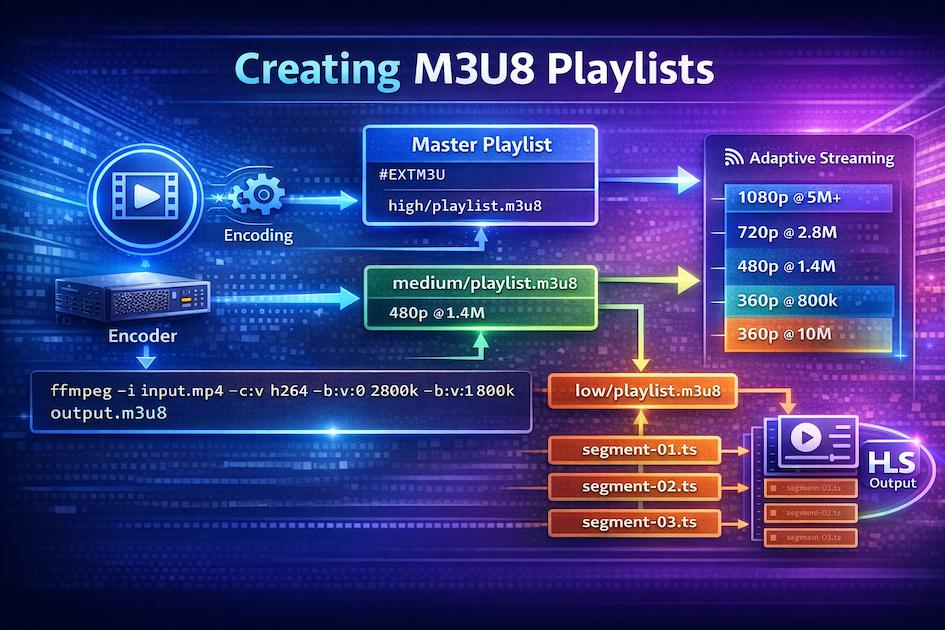
Creating & Optimizing M3U8 Playlists: Complete Streaming Guide
Creating high-quality M3U8 playlists requires balancing compatibility, performance, and file size. Whether you're streaming live events or delivering on-demand content, proper playlist creation is essential for delivering excellent user experiences.
Once you've created your playlists, test them against working examples from our M3U8 test streams collection to ensure they meet professional standards.
Introduction
M3U8 playlist creation isn't just about technical correctness - it's about optimizing for your audience's devices, network conditions, and viewing habits. The difference between a well-optimized playlist and a poorly created one can mean the difference between smooth playback and constant buffering.
Why proper M3U8 creation matters:
- User experience - Smooth playback without buffering
- Bandwidth efficiency - Deliver appropriate quality without waste
- Device compatibility - Work across all platforms and browsers
- Performance - Fast startup times and seamless quality switching
- Cost optimization - Reduce CDN bandwidth costs
- SEO impact - Better metrics (watch time, engagement)
Performance vs compatibility balance:
You'll constantly navigate tradeoffs:
- Higher quality vs larger file sizes
- More quality levels vs more complexity
- Shorter segments vs more HTTP overhead
- Advanced features vs wider compatibility
Creating Master Playlists
Master playlists (also called variant playlists) are the entry point for adaptive bitrate streaming. They list all available quality levels and alternative renditions.
Structure and Syntax
A master playlist defines available stream variants without containing actual media segments:
Basic master playlist:
plaintext#EXTM3U
#EXT-X-VERSION:3

#EXT-X-STREAM-INF:BANDWIDTH=800000,RESOLUTION=640x360
360p/playlist.m3u8

#EXT-X-STREAM-INF:BANDWIDTH=1400000,RESOLUTION=1280x720
720p/playlist.m3u8

#EXT-X-STREAM-INF:BANDWIDTH=2800000,RESOLUTION=1920x1080
1080p/playlist.m3u8
Required elements:
- header (must be first line)
#EXTM3U - At least one entry
#EXT-X-STREAM-INF - URLs to media playlists (one per variant)
Optional but highly recommended:
- - Specifies HLS version
#EXT-X-VERSION - attribute - Declares video and audio codecs
CODECS - attribute - Specifies frames per second
FRAME-RATE - - Average bitrate (helps with quality selection)
AVERAGE-BANDWIDTH
Defining Variant Streams
Each variant stream represents a different quality level:
Complete variant definition:
plaintext#EXT-X-STREAM-INF:BANDWIDTH=2800000,AVERAGE-BANDWIDTH=2500000,RESOLUTION=1920x1080,FRAME-RATE=30.000,CODECS="avc1.640028,mp4a.40.2"
1080p/index.m3u8
Attribute breakdown:
-
BANDWIDTH (required): Peak bitrate in bits per second
- Must be accurate for ABR to work properly
- Include overhead (add 10-15% to measured bitrate)
-
RESOLUTION (recommended): Width x height in pixels
- Helps devices select appropriate quality
- Mobile devices may prefer lower resolutions
-
FRAME-RATE (recommended): Frames per second
- Helps with smooth playback
- Common values: 24, 25, 30, 60
-
CODECS (highly recommended): Codec identifiers
- Format: "video_codec,audio_codec"
- Example H.264 + AAC: "avc1.640028,mp4a.40.2"
- Browsers use this to check support before downloading
-
AVERAGE-BANDWIDTH (recommended): Typical sustained bitrate
- More accurate than peak bandwidth
- Better for ABR decisions
Bitrate Ladder Strategies
A bitrate ladder is the set of quality levels you offer. Designing it correctly is critical for ABR performance.
Common bitrate ladders:
Conservative ladder (maximum compatibility):
plaintext360p:  800 Kbps  (mobile, poor connections)
480p: 1400 Kbps  (standard mobile, average connections)
720p: 2800 Kbps  (HD, good connections)
1080p: 5000 Kbps (Full HD, excellent connections)
Aggressive ladder (better quality):
plaintext360p:  600 Kbps
480p: 1100 Kbps
720p: 2400 Kbps
1080p: 4500 Kbps
1440p: 9000 Kbps
4K: 16000 Kbps
Design principles:
- Reasonable gaps - Each step should be 1.5-2× the previous
- Cover range - From weakest expected connection to strongest
- Mobile consideration - Include at least one sub-1Mbps option
- Target audience - Consider where your users are located
Example calculation:
If your lowest bitrate is 500 Kbps:
- 500 × 1.7 = 850 Kbps (round to 800)
- 800 × 1.7 = 1360 Kbps (round to 1400)
- 1400 × 1.7 = 2380 Kbps (round to 2400)
- 2400 × 1.7 = 4080 Kbps (round to 4000)
Resolution Selection
Choose resolutions that match common device capabilities:
Standard resolution ladder:
| Quality | Resolution | Aspect Ratio | Typical Use |
|---|---|---|---|
| 240p | 426×240 | 16:9 | Emergency fallback, very poor connections |
| 360p | 640×360 | 16:9 | Mobile, poor connections, data saving |
| 480p | 854×480 | 16:9 | Standard definition, average mobile |
| 720p | 1280×720 | 16:9 | HD, standard for most users |
| 1080p | 1920×1080 | 16:9 | Full HD, desktop and modern mobile |
| 1440p | 2560×1440 | 16:9 | QHD, high-end displays |
| 4K | 3840×2160 | 16:9 | Ultra HD, premium content |
Mobile-specific considerations:
- Most phones can't display above 1080p
- Smaller screens don't benefit from higher resolutions
- Battery and data usage are concerns
- Consider providing mobile-optimized lower resolutions
Complete master playlist example:
plaintext#EXTM3U
#EXT-X-VERSION:6

# Mobile - Poor Connection
#EXT-X-STREAM-INF:BANDWIDTH=600000,AVERAGE-BANDWIDTH=550000,RESOLUTION=640x360,FRAME-RATE=30.000,CODECS="avc1.42c01e,mp4a.40.2"
360p/playlist.m3u8

# Mobile - Good Connection / Desktop - Poor Connection
#EXT-X-STREAM-INF:BANDWIDTH=1100000,AVERAGE-BANDWIDTH=1000000,RESOLUTION=854x480,FRAME-RATE=30.000,CODECS="avc1.42c01f,mp4a.40.2"
480p/playlist.m3u8

# Desktop - Average Connection
#EXT-X-STREAM-INF:BANDWIDTH=2400000,AVERAGE-BANDWIDTH=2200000,RESOLUTION=1280x720,FRAME-RATE=30.000,CODECS="avc1.4d401f,mp4a.40.2"
720p/playlist.m3u8

# Desktop - Good Connection
#EXT-X-STREAM-INF:BANDWIDTH=4500000,AVERAGE-BANDWIDTH=4200000,RESOLUTION=1920x1080,FRAME-RATE=30.000,CODECS="avc1.640028,mp4a.40.2"
1080p/playlist.m3u8
Audio Rendition Groups
For multi-language or alternative audio support:
plaintext#EXTM3U
#EXT-X-VERSION:6

# Audio variants
#EXT-X-MEDIA:TYPE=AUDIO,GROUP-ID="audio-aac",NAME="English",LANGUAGE="en",DEFAULT=YES,AUTOSELECT=YES,URI="audio/en/playlist.m3u8"
#EXT-X-MEDIA:TYPE=AUDIO,GROUP-ID="audio-aac",NAME="Español",LANGUAGE="es",DEFAULT=NO,AUTOSELECT=YES,URI="audio/es/playlist.m3u8"
#EXT-X-MEDIA:TYPE=AUDIO,GROUP-ID="audio-aac",NAME="Français",LANGUAGE="fr",DEFAULT=NO,AUTOSELECT=YES,URI="audio/fr/playlist.m3u8"

# Video variants reference audio group
#EXT-X-STREAM-INF:BANDWIDTH=2800000,RESOLUTION=1920x1080,CODECS="avc1.640028",AUDIO="audio-aac"
1080p/playlist.m3u8
Benefits:
- Single video stream, multiple audio tracks
- Reduces bandwidth (only download selected audio)
- Better user experience (seamless switching)
Creating Media Playlists
Media playlists contain the actual segments that make up your stream.
Segment Duration Considerations
Segment duration affects multiple aspects of streaming:
Typical segment durations:
- 2-4 seconds: Low latency live streaming
- 6 seconds: Most common, good balance
- 10 seconds: VOD, fewer HTTP requests
Tradeoffs:
Shorter segments (2-4 seconds):
- ✅ Faster quality switching (ABR)
- ✅ Lower latency (live streaming)
- ❌ More HTTP requests (overhead)
- ❌ Larger playlist files
- ❌ More server processing
Longer segments (8-10 seconds):
- ✅ Fewer HTTP requests
- ✅ Less overhead
- ✅ Better for VOD
- ❌ Slower quality switching
- ❌ Higher latency
Recommended approach:
plaintextLive content: 6 seconds (balance of all factors)
VOD content: 6-10 seconds (optimize for fewer requests)
Low-latency: 2-4 seconds (when latency is critical)
Target Duration Optimization
#EXT-X-TARGETDURATIONplaintext#EXTM3U #EXT-X-VERSION:3 #EXT-X-TARGETDURATION:6 #EXT-X-MEDIA-SEQUENCE:0 #EXTINF:5.9, segment0.ts #EXTINF:6.0, segment1.ts #EXTINF:5.8, segment2.ts
Rules:
- Must be >= longest segment duration (rounded up)
- Players use this for buffer calculations
- Keep consistent across all quality levels
- For live: affects playlist reload timing
Calculation:
If segment durations are: 5.9, 6.0, 5.8, 6.1 seconds
Target duration = ceiling(6.1) = 7 seconds
Sequence Number Management
#EXT-X-MEDIA-SEQUENCEVOD playlist:
plaintext#EXTM3U
#EXT-X-VERSION:3
#EXT-X-TARGETDURATION:6
#EXT-X-MEDIA-SEQUENCE:0
#EXTINF:6.0,
segment0.ts
#EXTINF:6.0,
segment1.ts
#EXT-X-ENDLIST
Live playlist (initial):
plaintext#EXTM3U
#EXT-X-VERSION:3
#EXT-X-TARGETDURATION:6
#EXT-X-MEDIA-SEQUENCE:100
#EXTINF:6.0,
segment100.ts
#EXTINF:6.0,
segment101.ts
#EXTINF:6.0,
segment102.ts
Live playlist (after update):
plaintext#EXTM3U
#EXT-X-VERSION:3
#EXT-X-TARGETDURATION:6
#EXT-X-MEDIA-SEQUENCE:103  # Incremented as old segments removed
#EXTINF:6.0,
segment103.ts
#EXTINF:6.0,
segment104.ts
#EXTINF:6.0,
segment105.ts
Best practices:
- Start VOD at 0
- Start live at arbitrary number (allows for DVR rewind)
- Increment by number of segments removed
- Never decrement (breaks client playback)
Live vs VOD Playlist Differences
VOD (Video on Demand):
plaintext#EXTM3U
#EXT-X-VERSION:3
#EXT-X-TARGETDURATION:10
#EXT-X-MEDIA-SEQUENCE:0
#EXTINF:10.0,
segment0.ts
#EXTINF:10.0,
segment1.ts
#EXTINF:10.0,
segment2.ts
#EXT-X-ENDLIST  # Indicates playlist is complete
Characteristics:
- Contains tag
#EXT-X-ENDLIST - Never updated after creation
- All segments available immediately
- Players can seek anywhere in content
Live:
plaintext#EXTM3U
#EXT-X-VERSION:3
#EXT-X-TARGETDURATION:6
#EXT-X-MEDIA-SEQUENCE:420
#EXTINF:6.0,
segment420.ts
#EXTINF:6.0,
segment421.ts
#EXTINF:6.0,
segment422.ts
# No #EXT-X-ENDLIST - playlist continues
Characteristics:
- No tag
#EXT-X-ENDLIST - Updated periodically (every target duration)
- Old segments removed over time
- Players must reload playlist regularly
Encoding Recommendations
Proper encoding is crucial for high-quality M3U8 streams.
H.264 vs H.265 Codec Choices
H.264/AVC (Advanced Video Coding):
Pros:
- Universal support (all devices and browsers)
- Hardware decoding widely available
- Well-understood and battle-tested
- Lower processing requirements
Cons:
- Less efficient compression than H.265
- Larger files for same quality
- Higher bandwidth requirements
When to use: Default choice for maximum compatibility
H.265/HEVC (High Efficiency Video Coding):
Pros:
- 40-50% better compression than H.264
- Same quality at lower bitrates
- Smaller files, less bandwidth
- Better for 4K content
Cons:
- Limited browser support (Safari only)
- No support in Chrome/Firefox (patent issues)
- Higher processing requirements
- Licensing complexity
When to use: iOS/Safari-only content, or when providing multiple codec options
Codec comparison:
Same quality:
H.264 @ 5 Mbps = H.265 @ 2.5 Mbps (50% savings)

Same bitrate:
H.264 @ 3 Mbps (720p quality) = H.265 @ 3 Mbps (1080p quality)
Audio Codec Selection
AAC (Advanced Audio Coding):
Best overall choice:
- Universal support
- Excellent quality at moderate bitrates
- 128-192 Kbps sufficient for stereo
- 384-512 Kbps for 5.1 surround
Recommended AAC settings:
bashffmpeg -i input.mp4 \
  -c:a aac \
  -b:a 128k \  # Stereo
  -ar 48000 \  # 48kHz sample rate
  output.m4a
MP3:
- Legacy support
- Slightly less efficient than AAC
- Use only if AAC not available
AC-3 / E-AC-3 (Dolby Digital):
- Superior surround sound
- Limited browser support (Safari/iOS mainly)
- Use as alternative audio track, not primary
Opus:
- Excellent quality and efficiency
- Limited HLS support
- Better for WebRTC than HLS
Bitrate Allocation Rules
How to distribute bitrate between video and audio:
General guidelines:
Total bitrate = Video bitrate + Audio bitrate + Overhead (10%)

Examples:
360p target 800 Kbps:
  Video: 700 Kbps, Audio: 96 Kbps = 796 Kbps

720p target 2800 Kbps:
  Video: 2600 Kbps, Audio: 192 Kbps = 2792 Kbps

1080p target 5000 Kbps:
  Video: 4700 Kbps, Audio: 192 Kbps = 4892 Kbps
Audio bitrate recommendations:
- 64 Kbps: Emergency fallback (low quality)
- 96 Kbps: Acceptable for speech/podcasts
- 128 Kbps: Good for music (stereo)
- 192 Kbps: Excellent quality (stereo)
- 384-512 Kbps: Surround sound (5.1)
GOP (Group of Pictures) Structure
GOP affects compression efficiency and seeking:
What is GOP:
A GOP is a group of video frames between keyframes:
I-frame (keyframe) → P-frames → P-frames → I-frame (keyframe)
GOP size considerations:
Short GOP (1-2 seconds):
- ✅ Fast seeking
- ✅ Quick quality switching
- ✅ Better for live streaming
- ❌ Less compression efficiency
- ❌ Larger file sizes
Long GOP (4-6 seconds):
- ✅ Better compression
- ✅ Smaller file sizes
- ❌ Slower seeking
- ❌ Slower quality switching
Recommended:
bashffmpeg -i input.mp4 \
  -g 48 \  # GOP size: 48 frames
  -keyint_min 48 \  # Minimum GOP size
  -sc_threshold 0 \  # Disable scene cut detection
  output.mp4
For 24fps video,
GOP=48Rule of thumb:
GOP size = frame_rate × desired_keyframe_interval_seconds

30fps, 2-second keyframes: 30 × 2 = 60
25fps, 2-second keyframes: 25 × 2 = 50
Keyframe Intervals
Keyframes (I-frames) are critical for HLS:
Best practices:
- Align keyframes with segment boundaries
- Use fixed keyframe intervals (disable scene detection)
- Keyframe every segment start is ideal
FFmpeg example:
bashffmpeg -i input.mp4 \
  -c:v libx264 \
  -x264-params "keyint=48:min-keyint=48:scenecut=0" \
  -hls_time 6 \
  output.m3u8
This ensures:
- Keyframe every 48 frames (2 seconds at 24fps)
- No scene-cut keyframes
- Segments align with keyframes
Adaptive Bitrate Strategy
ABR is what makes HLS special. Done right, it delivers seamless viewing. Done wrong, it frustrates users.
Bandwidth Ladder Design
Your bandwidth ladder should match real-world network conditions:
Research your audience:
-
Check analytics for:
- Geographic distribution
- Device types
- Network speeds
-
Design ladder to cover 95% of users:
If 5% on <1 Mbps connections: include 600 Kbps variant
If 50% on 2-5 Mbps: emphasize 1-3 Mbps range
If 20% on >10 Mbps: include 4K option
Example ladders by use case:
Global audience (mixed connections):
360p:  600 Kbps  (poor connections)
480p: 1100 Kbps  (average mobile)
720p: 2500 Kbps  (good connections)
1080p: 5000 Kbps (excellent connections)
Premium service (high-end users):
720p: 2500 Kbps  (minimum quality)
1080p: 5000 Kbps (standard)
1440p: 9000 Kbps (high-end)
4K: 16000 Kbps (premium)
Mobile-first (data-conscious users):
240p:  400 Kbps  (extreme data saving)
360p:  600 Kbps  (data saving)
480p: 1000 Kbps  (balanced)
720p: 2000 Kbps  (high quality)
Quality Level Selection
Players select quality based on:
- Available bandwidth (measured)
- Device capabilities (screen size, CPU)
- User preferences (manual selection)
- Buffer health (switch down if buffering)
Factors to consider:
- Start conservative (begin at mid-quality)
- Ramp up gradually (don't jump to highest immediately)
- Switch down aggressively (prevent buffering)
- Switch up conservatively (avoid oscillation)
Smooth Transition Optimization
Quality switches should be imperceptible:
Techniques:
-
Aligned GOP structures - All qualities use same keyframe interval
-
Consistent segment durations - All qualities use identical durations
-
Buffer management:
javascript// HLS.js configuration { maxBufferLength: 30, // Max buffer size maxBufferSize: 60 * 1000 * 1000, // 60MB maxBufferHole: 0.5, // Max gap before giving up } -
Progressive quality switching - Don't skip levels
Example:
Good: 360p → 480p → 720p (gradual)
Bad: 360p → 1080p → 480p (jarring oscillation)
Mobile vs Desktop Considerations
Different platforms need different strategies:
Mobile optimization:
- Prefer lower resolutions (screen size limited)
- Emphasize data efficiency (limited plans)
- Consider battery impact (higher quality = more processing)
- Test on actual devices (emulators don't reflect reality)
Desktop optimization:
- Emphasize visual quality (large screens)
- Higher bitrates acceptable (unlimited broadband common)
- Support 4K for premium content
- Consider ultrawide aspect ratios
Adaptive approach:
javascript// Detect device and adjust
const isMobile = /iPhone|iPad|iPod|Android/i.test(navigator.userAgent);

if (isMobile) {
  hls.config.maxMaxBufferLength = 20;  // Smaller buffer
  hls.config.abrEwmaDefaultEstimate = 500000;  // Start lower
} else {
  hls.config.maxMaxBufferLength = 60;  // Larger buffer
  hls.config.abrEwmaDefaultEstimate = 2000000;  // Start higher
}
Playlist Optimization Techniques
Beyond basic creation, optimization separates good from great.
CDN Delivery Optimization
CDN configuration significantly impacts performance:
Cache headers:
nginx# Segments - cache aggressively
location ~ \.ts$ {
    expires 1y;
    add_header Cache-Control "public, immutable";
}

# Playlists - short cache for live, long for VOD
location ~ \.m3u8$ {
    expires 6s;  # Live
    # expires 1y;  # VOD
    add_header Cache-Control "public";
}
Best practices:
- Long cache for segments (immutable)
- Short cache for live playlists
- Long cache for VOD playlists
- Enable HTTP/2 for multiplexing
- Use CDN with good geographic coverage
Caching Strategies
Different content needs different caching:
Live content:
Master playlist: 10-30 seconds
Media playlists: 3-6 seconds (half target duration)
Segments: Long (1 hour+) once fully transcoded
VOD content:
All playlists: Long (1 year)
All segments: Long (1 year)
HTTP headers for live:
Cache-Control: public, max-age=6
HTTP headers for VOD:
Cache-Control: public, max-age=31536000, immutable
Compression Settings
Compress playlists and text content:
Enable gzip/brotli:
nginxgzip on;
gzip_types application/vnd.apple.mpegurl application/x-mpegurl;
gzip_min_length 256;

# Brotli (if available)
brotli on;
brotli_types application/vnd.apple.mpegurl application/x-mpegurl;
Savings:
Uncompressed playlist: 5 KB
Gzipped: 1.5 KB (70% reduction)
Brotli: 1.2 KB (76% reduction)
Segment Size vs Latency Tradeoff
Segment duration affects latency:
Latency calculation:
Minimum latency = (segment_duration × 3) + network_delay + encoding_delay

6-second segments:
(6 × 3) + 0.5 + 1 = 19.5 seconds typical latency

2-second segments:
(2 × 3) + 0.5 + 1 = 7.5 seconds typical latency
Considerations:
- Smaller segments = lower latency
- But more overhead (HTTP requests)
- And larger playlists
- Balance based on use case
Recommendations:
Ultra-low latency: 1-2 seconds (LL-HLS)
Low latency: 2-4 seconds (sports, live events)
Standard: 6 seconds (most content)
Optimized for efficiency: 8-10 seconds (VOD)
Tools for M3U8 Creation
Automating playlist creation saves time and reduces errors.
FFmpeg for HLS Packaging
FFmpeg is the industry-standard tool:
Basic HLS generation:
bashffmpeg -i input.mp4 \
  -c:v libx264 -c:a aac \
  -hls_time 6 \
  -hls_list_size 0 \
  -hls_segment_filename 'segment%03d.ts' \
  output.m3u8
Multi-bitrate HLS:
bashffmpeg -i input.mp4 \
  -filter_complex \
    "[0:v]split=3[v1][v2][v3]; \
     [v1]scale=w=640:h=360[v1out]; \
     [v2]scale=w=1280:h=720[v2out]; \
     [v3]scale=w=1920:h=1080[v3out]" \
  -map "[v1out]" -c:v:0 libx264 -b:v:0 800k \
  -map "[v2out]" -c:v:1 libx264 -b:v:1 2800k \
  -map "[v3out]" -c:v:2 libx264 -b:v:2 5000k \
  -map a:0 -c:a aac -b:a 128k -ac 2 \
  -f hls -hls_time 6 \
  -hls_segment_filename 'stream_%v/segment%03d.ts' \
  -master_pl_name master.m3u8 \
  -var_stream_map "v:0,a:0 v:1,a:0 v:2,a:0" \
  stream_%v/playlist.m3u8
Advanced options:
bash-hls_flags delete_segments  # Remove old segments in live
-hls_flags append_list      # Append to existing playlist
-hls_flags independent_segments  # Each segment is independent
-hls_playlist_type vod      # Mark as VOD (add #EXT-X-ENDLIST)
Online Playlist Generators
Web-based tools for quick generation:
Features to look for:
- Visual bitrate ladder builder
- Automatic segment creation
- Multi-quality encoding
- Preview before download
- Template support
Limitations:
- File size limits
- Processing time limits
- Less control than command-line tools
- Privacy concerns (uploading content)
Encoding Service Comparison
Cloud encoding services automate everything:
Popular services:
- AWS Elemental MediaConvert - Enterprise-grade
- Google Transcoder API - Scalable
- Azure Media Services - Microsoft ecosystem
- Bitmovin - Developer-friendly
- Mux - Simple API
Benefits:
- No infrastructure management
- Automatic quality optimization
- Built-in CDN delivery
- Analytics included
Costs:
Typically $0.01-0.05 per minute of encoded video, varying by:
- Input resolution
- Number of output qualities
- Advanced features (DRM, advertising)
Testing Your Playlists
Before deploying, validate thoroughly:
Validation checklist:
-
Syntax check:
bashmediastreamvalidator output.m3u8 # macOS only -
Playback test: Use our online player or test URLs collection
-
Multi-browser test: Safari, Chrome, Firefox, Edge
-
Mobile test: iOS Safari, Android Chrome
-
Network throttling: Simulate poor connections
Learn more testing strategies in our M3U8 Testing guide.
Best Practices Checklist
Before going live, verify:
Format validation:
- header present
#EXTM3U - All required tags included
- Syntax follows HLS specification
- URLs are accessible and correct
Cross-device testing:
- Works on iOS Safari
- Works on Android Chrome
- Works on desktop browsers
- Quality switching works
- Audio/video synchronized
Performance monitoring:
- Segment load times < 200ms
- Quality switches without buffering
- No excessive quality oscillation
- Memory usage reasonable
Security considerations:
- HTTPS for all resources
- CORS headers configured
- Authentication working (if required)
- Encryption implemented (if required)
For implementation details on advanced features, check our Advanced M3U8 Features guide.
Conclusion
Creating optimized M3U8 playlists requires understanding the complete ecosystem: encoding, adaptive bitrate strategy, delivery optimization, and testing. Start with conservative settings that maximize compatibility, then optimize based on your audience's actual behavior.
Remember to test your created playlists against our collection of working M3U8 test URLs to ensure professional quality.
Continue learning with our Advanced M3U8 Features guide to implement enterprise-grade streaming features.